


You might have heard of Aurasma and you might even use it in your school. If you belong to the second category, you already know how good it is and the potential it has to engage children in active and creative learning activities. In this post I want to show you how Aurasma can be used to allow your learners to use Peer Feedback in more creative ways. This inevitably develops children’s literacy skills too, as I will explain in a few lines.
What’s an Aura?
An aura is the name given by Aurasma (an AR app for iOS and Android devices) to a 3D animation, an image, or a video, that can appear on the screen of your iPad/iPhone/iPod when you point your camera at something you set as a trigger within the Aurasma app. These triggers can be anything that the app recognises easily, e.g. a photo, diagram, object. Aurasma will tell you whether what you are pointing at is a good trigger, or not via a colour scale, the greener it gets the better.
Why should I have a school/department’s channel?
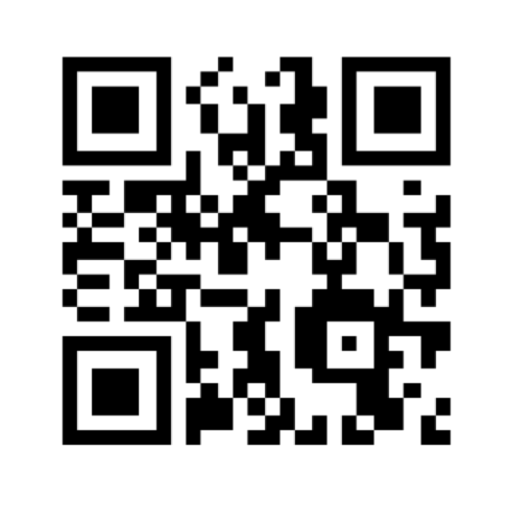
Aurasma lets you create your own channels and people can follow your channel(s) to see your auras. So, for example, you could set your school logo as a trigger for a video message left by your Headteacher to welcome people to the school. When anyone who is following your school channel on Aurasma will see your Headteacher’s video message appearing on top of the school logo every time they point at it with their smartphone camera within Aurasma. Creating your channel is easy and the app takes you through it step by step, but it a good idea to create a QR code of your channel link, so when your students scan that they will automatically follow you, as long as they have Aurasma installed in their devices. Try scanning the QR Code below to follow CollaboratEd on Aurasma.
Peer Assessment with Aurasma
You have probably worked out how you can integrate Peer Assessment in more creative ways through Aurasma by now. Use your learners’ work like a diagram, or picture, they have drawn as a trigger and get other students to leave a video comment on their work. You could use the two stars and a wish model to leave feedback, for example. If the videos are uploaded on your school’s Aurasma channel the learners who follow that channel will be able to see the comment by pointing at the feature of their work that acts as the trigger from any device that has Aurasma installed. This also means that their parents can see the video comments when their children bring the work home. Watch the short video below to get a better idea of how this might work.



Recent Comments